Deploying a Devprime microservice on Azure Kubernetes Services (AKS)
Introduction
The Devprime platform accelerates software developer productivity by offering a complete software architecture design, components with intelligent behaviors, accelerators for code deployment, and updates with new features.
In this article, we will discuss the use of the Azure Kubernetes Service (AKS), a cloud platform that offers several resources for the software developer to use in applications.
We will use two microservices with one business rule related to orders and one to payments using the MongoDB database based on Azure CosmosDB managed by Microsoft. We’ll demonstrate the steps to build the microservice, cloud services on Azure Kubernetes Service (AKS), Azure Container Registry, MongoDB, and deploy RabbitMQ inside Kubernetes, then the initial configurations required.
Checklist and preparation of the initial environment
- Open an account on the Devprime platform and purchase a [(Developer/Enterprise)] license(https://devprime.io/pricing).
- Install an updated version of .NET (Linux, macOS, and Windows).
- Install and/or update Visual Studio Code and/or Visual Studio 2023 Community / Professional / Enterprise.
- Install and/or update docker (Linux, macOS and Windows) (For Windows, use WSL2).
- Initialize the [MongoDB and RabbitMQ containers on docker] locally(../../../quick-start/docker/) and add the ‘orderevents’ and ‘paymentevents’ queue in RabbitMQ.
- Install and activate the latest version of the Devprime CLI.
- Create a local folder for your projects and set read and write permissions.
- See the article “Creating the First Microservice” to explore getting started with the Devprime platform.
- An active account in Microsoft Azure.
- The Azure CLI installed and active in the on-premises environment.
- Create an account in Azure CosmosDB and get the connection credentials.
- Create an account in Azure Event Hubs and get the connection credentials.
Getting Started
In this article, we will use a project with two microservices using asynchronous communication. /../../../examples/stream/rabbitmq/asynchronous-microservices-communication/), with the first Order and the second Payment being that you can choose to create from scratch or using the example on GitHub.
a) Run a clone of the project on GitHub:
git clone https://github.com/devprime/devprime-microservices-order-payment.git
b) Access the cloned folder and check the home folder with the Order and Payment items. Each folder in this folder has a microservice developed with the Devprime platform and ready to use.
cd devprime-microservices-order-payment
git remote remove origin
c) Run the dp stack command to apply the update and your Devprime license:
dp stack
d) Run each microservice in a terminal tab to test locally using the .\run.ps1 files on Windows or run.sh on Linux and macOS. Apply the chmod permission on Linux, macOS.
chmod +x run.sh
Start the microservice by running one of the scripts below:
.\run.ps1 (Windows) or ./run.sh (Linux, macOS)
- /ms-order
- /ms-payment
With the microservices running, make a post to the order microservice API and track the processing in the payment microservice as described in the article on asynchronous communication between microservices.
Parsing the default port in dockerfile and App configuration
Microservices developed using the Devprime platform are automatically deployed with a dockerfile in the project folder that must be configured if you want to modify the internal port to receive requests. If you want to change it to 8080 or another value, you must change it in the dockerfile and also in the application configuration.
Parsing the default port in the dockerfile
Open via Visual Studio Code:
|
|
|
|
Parsing the default port in the AppSettings file
Open via Visual Studio Code:
|
|
|
|
IMPORTANT:
- The value of the port exposed in the dockerfile must be equal to the value of the port configured in the key
DevPrime_Websent as an environment to Azure Kubernetes Service (AKS). - If you modify the dockerfile, you need to publish a new image to Azure Container Registry (ACR).
Creating Azure Container Registry (ACR)
We will use Azure Container Registry (ACR) to repository private docker images. You can go to the Azure portal and create a new private repository, or if you prefer, use the Azure CLI and other strategies to provision the resources.
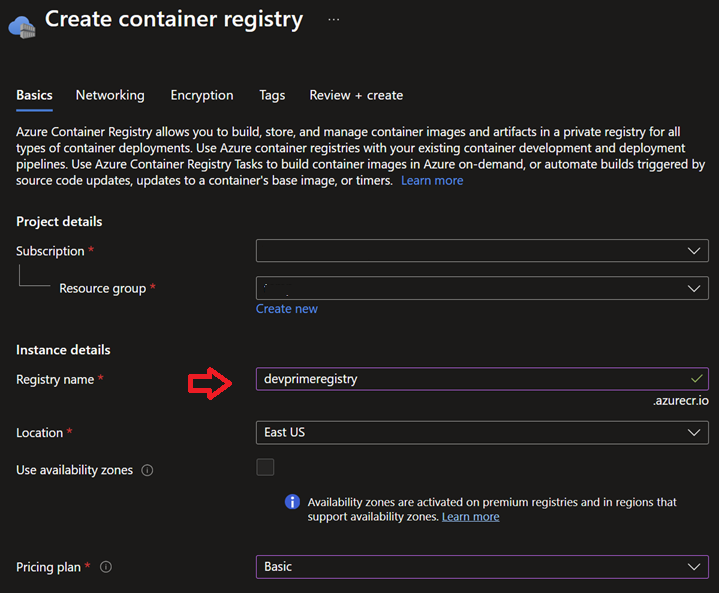
Sign in to the portal and create a new Container Registry. In the example, we use the name “devprimeregistry” and proceed to activate the service.
After creating the ACR, locate the “Settings > Access keys” item and activate the “Admin user” option to obtain the credential that will be used to connect to the Azure Container Registry (ACR) service and publish an image.
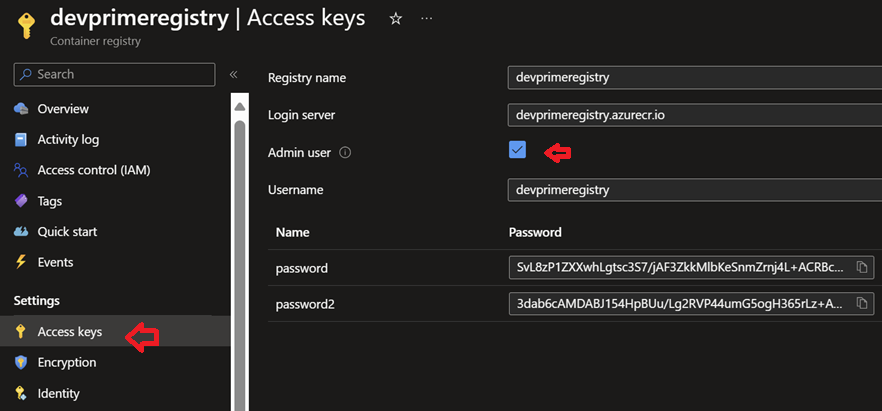
The table below provides a summary of the information required to connect to the Azure Container Registry (ACR) service. It’s important to remember that you must get the data from your Azure portal.
| Key | Value |
|---|---|
| Server | devprimeregistry.azurecr.io |
| Registry | devprimeregistry |
| Username | devprimeregistry |
| Password | 2t44H70qmRDGdBCo |
Creating an Azure Kubernetes Service (AKS) cluster
Creating a new Kubernetes cluster on Azure Kubernetes Service (AKS) can be accomplished through the portal, CLI, and marketplace tools such as Bicep, Terraform, and others. An important step in creating the cluster is to define the first node in the cluster and the number of replicas. In our article, we will use a conceptual example in order to present the basic script.
Go to the Azure portal and start creating a new service
! Azure Kubernetes Service (AKS)(/images/deployment/azure/azure-kubernetes-service/aks/01-create-aks.png)
After moving forward, locate the “Integration” tab and link the Azure Container Registry (ACR) to Azure Kubernetes Services (AKS), this will facilitate the deployment of continers in AKS using the integrated credentials.
! Azure Kubernetes Service (AKS)(/images/deployment/azure/azure-kubernetes-service/aks/02-create-aks-integration-acr.png)
By advancing in the monitoring tab you can disable all the suggested items, as they are not necessary for this demonstration.
! Azure Kubernetes Service (AKS)(/images/deployment/azure/azure-kubernetes-service/aks/03-aks-dashboard.png)
Installing tools for use on Kubernetes
We will use some tools for integration with Kubernetes such as kubectl, which is the Kubernetes CLI, Helm, tool to install packages on Kubernetes, K9S tool to view the cluster, Stern, tool to view logs on Kubernetes, Azure CLI, Azure Command-Line Interface (CLI), and docker. Some of these tools can be installed through package managers depending on the operating system.
After installing the Azure CLI, it is critical to follow the procedures for configuring the CLI to enable access to and enable operations such as obtaining Azure Kubernetes Service (AKS) credentials.
Checklist:
- Enabling the Azure CLI
az login - Enabling docker
docker login - Enabling the Devprime CLI
dp auth
Getting access to Azure Kubernetes Services (AKS)
Access credentials to the Kubernetes cluster can be obtained using the Azure CLI, as we’ll do during this article. When you run the get-credentials command, the cluster access credentials will be saved in the local environment in the .kube/config file. In the example, we pass the name of the AKS service created, “devprime-aks-devtest”, and the linked resource group, “devprime-aks-devtest_group”.
Exxecute the command at the prompt
|
|
Listing all pods in the Cluster
|
|
Using k9s to view the Cluster
|
|
In the image we are listing all the active containers deployed at the creation of the cluster.
! Azure Kubernetes Service (AKS)(/images/deployment/azure/azure-kubernetes-service/aks/04-k9s.png)
In the next steps we will start the creation of the order and payment container.
Building docker images and publishing to Azure Container Registry (ACR)
An important step in the Kubernetes landscape is to build the docker image of our microservices so that we can perform the publishing within the Kubernetes Cluster environment. Now it’s time to use the Azure CLI or “az” to log in to the Azure Container Registry created in the previous step and allow you to push docker images from your on-premises environment to ACR. Before moving forward, make sure that you have the Azure CLI enabled (az login) in your environment.
Authenticating docker to Container Registry
|
|
Building the order microservice image in docker
-
Enter the order microservice folder and run
cd ms-order
docker build -t order . -
Create a tag for this image
docker tag order devprimeregistry.azurecr.io/order:latest -
Pushing by pushing to docker
docker push devprimeregistry.azurecr.io/order:latest
Building the payment microservice image on docker
-
Go to the payment microservice folder and run
cd ms-payment
docker build -t payment . -
Create a tag for this image
docker tag payment devprimeregistry.azurecr.io/payment:latest -
Pushing by pushing to docker
docker push devprimeregistry.azurecr.io/payment:latest
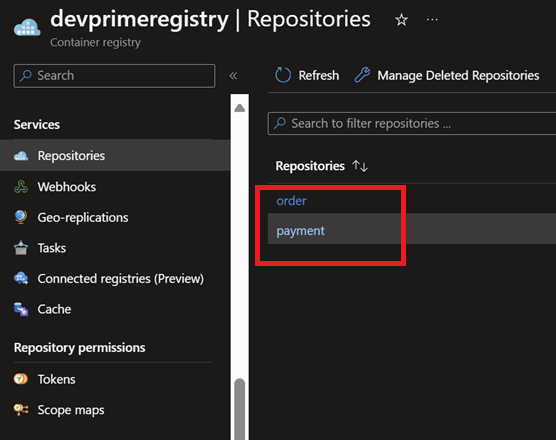
At the end of this push procedure, the order and payment images will be able to check in the Container Registry portal and they are ready for use in Kubernetes.
Deploying RabbitMQ on Kubernetes
The Devprime platform enables connectivity to various Stream services(/settings/stream/) with RabbitMQ, Kafka and others and in this project we will use helm to deploy RabbitMQ in the cluster. You can choose to use the managed Kafka service offered by Azure Event Hubs depending on the scenario in your project. /../../../examples/stream/azure-event-hubs/asynchronous-microservices-communication/) or another alternative for communication between the microservices.
Deploying RabbitMQ using Helm. Change the username and password at your discretion.
helm repo add bitnami https://charts.bitnami.com/bitnami
helm repo update
helm install rabbitmq bitnami/rabbitmq --set auth.username=admin --set auth.password=MQ@passX6DP
The RabbitMQ deployment process takes a while to complete and you can follow along from K9S. After installation, you can map the RabbitMQ ports in the local environment to access. Before mapping, it is essential to stop the local RabbiMQ container to avoid TCP port conflicts.
RabbitMQ Ports
- RabbitMQ AMQP port:
kubectl port-forward --namespace default svc/rabbitmq 5672:5672 - RabbitMQ Web Management interface:
kubectl port-forward --namespace default svc/rabbitmq 15672:15672
Configuring the Initial RabbitMQ Configuration
Map port 15672 and access the RabbitMQ administrative portal via url http://localhost:15672 to configure the ‘orderevents’ and ‘paymentevents’ queues in RabbitMQ and relate to the “exchange” as per the RabbitMQ documentation on Devprime in order to enable this article.
Parsing MongoDB and RabbitMQ credentials in microservices on-premises environments
In the local environment, you can edit the application settings and credentials in the src/App/appsettings.json file, such as the MongoDB and RabbitMQ access data used in the project and other items available in the Devprime configuration documentation.
To open the configuration for each microservice, enter the related folder
ms-order
ms-payment
Open from Visual Studio Code or another editor
code src/App/appsettings.json
View in the RabbitMQ and MongoDB keys the credentials used in the local environment and can be modified at any time.
|
|
|
|
Configuring MongoDB and RabbitMQ credentials in Kubernetes
In our context, we’ll create a deployment file for each microservice and use the DevPrime CLI to build the initial deployment.yml and service.yml files. To do this, we’ll run the command in each microservice’s folder. Next, we will perform the configuration with the credentials that we will use in the order and payment microservices within the Kubernetes cluster.
Enter the ms-order folder and run the command
dp export kubernetes
Enter the ms-payment folder and run the command
dp export kubernetes
The result will be similar to the snippet below, with two files created containing the initial configurations needed for publishing to Kubernetes. Notice that a deployment.yml file and a service.yml file were generated.
|
|
Now it’s time to edit the “deployment.yml” file. Locate
the “image” item in the order folder and the payment folder.
Open the folder in Visual Studio Code or another editor
code .devprime/kubernetes/deployment.yml
File: deployment.yml
|
|
Perform the procedure for each microservice (order/payment) and change the image item to the path of your image in Azure Container Registry. The Azure Container Registry url is the same as the one used by the docker push command.
Run in ms-order folder
code .devprime/kubernetes/deployment.yml
|
|
Run in the ms-payment folder
File: payment/deployment.yaml
|
|
Now it’s time to configure the production credentials for RabbitMQ and RabbitMQ in each microservice.
MongoDB provided by Microsoft Azure Cosmos Db. Locate the block below in the deployment.yaml file
code .devprime/kubernetes/deployment.yml
|
|
In item devprime_stream1 change the user to “admin” and the password to “MQ@passX6DP”.
in the devprime_state1 item, change the connection to the MongoDB Connection String in Microsoft Azure Cosmos Db.
Below you can see an example after the changes that must be made to the microservices deployment files (order/payment). Make the change directly to each file to avoid modifying other parameters in this demo, as the keys have slight differences between microservices.
Run in ms-order folder
code .devprime/kubernetes/deployment.yml
|
|
Run in the ms-payment folder
code .devprime/kubernetes/deployment.yml
|
|
Deploying microservices on Kubernetes
Now the most awaited moment has arrived, where we will effectively publish the microservices (order and payment) within the Kubernetes cluster and for this we will use the deployment.yml and service.yml files of each microservice.
Enter each folder and run the commands below:
-
For the order microservice
- Navigate to the order service’s Kubernetes folder:
ms-order/.devprime/kubernetes - Apply deployment and service:
kubectl apply -f deployment.yml
kubectl apply -f service.yml
- Navigate to the order service’s Kubernetes folder:
-
For the ayment microservice
- Navigate to the payment service’s Kubernetes folder:
ms-payment/.devprime/kubernetes - Apply deployment and service:
kubectl apply -f deployment.yml
kubectl apply -f service.yml
- Navigate to the payment service’s Kubernetes folder:
Now that we have finished our deployment of the two microservices, we can view it directly in the cluster by the k9s tool or by using kubectl.
! Azure Kubernetes Service (AKS)(/images/deployment/azure/azure-kubernetes-service/aks/05-k8s-defail.png)
Performing a test on the microservice
Open a terminal tab and run the port-forward command to map the order microservice to local port 8080 and allow you to perform the first test by accessing the platform directly on the cluster.
-
Run the command for the Order
kubectl port-forward --namespace default svc/ms-order 8080:80 -
Access the URL and POST to the order microservice to process and emit an event in the RabbitMQ queue and propagate to the payment microservice
http://localhost:8080
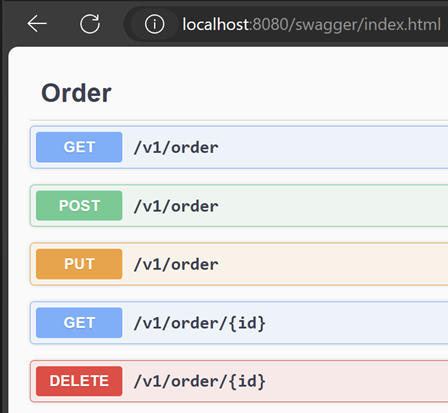
Assigning a public IP to the order microservice
We will change the services to change from an internal ip in the “ClusterIP” parameter to “LoadBalancer” which will use a public ip of the cluster.
Enter the order folder and run the command to open Visual Studio Code
code .devprime/kubernetes/service.yml
|
|
Go to the order folder below and run the commands:
ms-order/.devprime/kubernetes
Deleting the service from the order microservice:
kubectl delete svc ms-order
Recreating the ms-order service:
kubectl apply -f service.yml
Now query the update until you receive a public IP in the order microservice:
kubectl get svc ms-order -w
NAME       TYPE           CLUSTER-IP    EXTERNAL-IP      PORT(S)        AGE
ms-order   LoadBalancer   10.0.175.19   48.x.x.x         80:31191/TCP   50m
Viewing the order microservice using an external IP
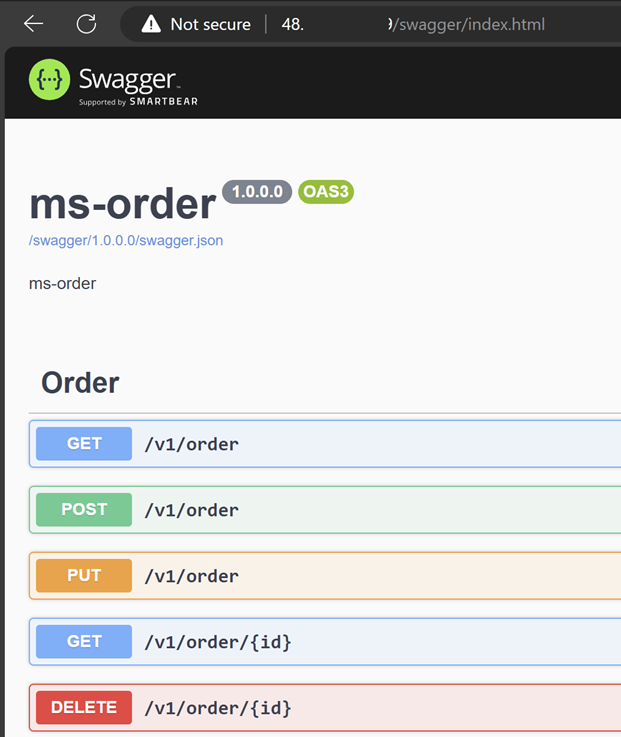
Viewing logs in Kuberbernetes
Microservices based on the Devprime platform provide an approach of automatic observability of distributed logs that can be viewed by kubectl, k9s, stern and indexed in tools such as SEQ, Elastic Search and many others to track the behavior of applications in the production environment.
In this example, we will use the stern tool to view the log of each deployment:
- Open a tab for the ‘order’ microservice in the terminal and run:
stern ms-order - Open a tab for the ‘payment’ microservice in the terminal and run:
stern ms-payment - Now, use port or public IP mapping and perform a post to the ‘order’ microservice to check a result. In the log below, you will see a summary of the ‘order’ as an example.
[INF][ms-order][Web]["http://*:80"][Host]["Production"][Parameters]["Environment"][RID 30c1c7a9-7799-43e6-a1b2-5d4007b3edb8][TID 30c1c7a9-7799-43e6-a1b2-5d4007b3edb8]
[INF][ms-order][Stream][Type "RabbitMQ"][Alias "Stream1"]["Enable"][RID 30c1c7a9-7799-43e6-a1b2-5d4007b3edb8][TID 30c1c7a9-7799-43e6-a1b2-5d4007b3edb8]
[INF][ms-order][Web]["HTTP"][Order][POST /v1/order][Origin "http://localhost/swagger/index.html"][RID c1461cc3-7000-473d-a62c-915867954ced][TID c1461cc3-7000-473d-a62c-915867954ced]
[INF][ms-order][Application][OrderService][Add][RID c1461cc3-7000-473d-a62c-915867954ced][TID c1461cc3-7000-473d-a62c-915867954ced]
[INF][ms-order][Domain][Order][Add][RID c1461cc3-7000-473d-a62c-915867954ced][TID c1461cc3-7000-473d-a62c-915867954ced]
[INF][ms-order][Domain][Order][ProcessEvent]["CreateOrder"][RID c1461cc3-7000-473d-a62c-915867954ced][TID c1461cc3-7000-473d-a62c-915867954ced]
[INF][ms-order][Application][EventHandler]["CreateOrderEventHandler"][Event]["CreateOrder"][RID c1461cc3-7000-473d-a62c-915867954ced][TID c1461cc3-7000-473d-a62c-915867954ced]
[INF][ms-order][State][Type "MongoDB"][Alias "State1"][Initialize][OrderRepository][Add][RID c1461cc3-7000-473d-a62c-915867954ced][TID c1461cc3-7000-473d-a62c-915867954ced]
[INF][ms-order][State][Type "MongoDB"][Alias "State1"][Complete][OrderRepository][Add][Duration 1192.1472ms][RID c1461cc3-7000-473d-a62c-915867954ced][TID c1461cc3-7000-473d-a62c-915867954ced]
[INF][ms-order][Domain][Order][ProcessEvent]["OrderCreated"][RID c1461cc3-7000-473d-a62c-915867954ced][TID c1461cc3-7000-473d-a62c-915867954ced]
[INF][ms-order][Application][EventHandler]["OrderCreatedEventHandler"][Event]["OrderCreated"][RID c1461cc3-7000-473d-a62c-915867954ced][TID c1461cc3-7000-473d-a62c-915867954ced]
[INF][ms-order][Stream][Type "RabbitMQ"][Alias "Stream1"][Out][Event]["OrderCreated"]["Delivered"]["orderevents"]
["{\""Payload\":{\"ID\":\"ca9983\",\"CustomerName\":\"Ramon Duraes\",\"CustomerTaxID\":\"AC875512\",\"Total\":1200}}"]
Final considerations
During this article, we demonstrated the publication of two microservices (order and payment) developed using Devprime platform technology on the Azure Kubernetes Service (AKS) cluster, together with the Azure Container Registry and Azure CosmosDB services using the managed MongoDB api, and with RabbitMQ that we deployed on the cluster using Helm. You also followed how to access the service using an internal IP and an External IP and view the logs.
In a production environment, it is essential to add an nginx ingress, an internet domain, and Let’s Encrypt to generate an SSL certificate, use a DevOps service to automate publishing, digital vault for credentials, access protection with an API Gateway, identity provider, and Web Application Firewall.
Last modified November 20, 2024 (61099f59)