Using Azure Container Apps and Bicep to deploy Devprime microservice
The implementation of this environment involving two microservices Devprime and Azure Container Apps will additionally utilize Azure Container Registry (ACR), Azure Log Analytics, Azure Container Apps Environment, Azure CosmosDB, Azure EventHub services.
The image below demonstrates what the final environment will look like after we start all the procedures for creating the environment and publishing the microservices.
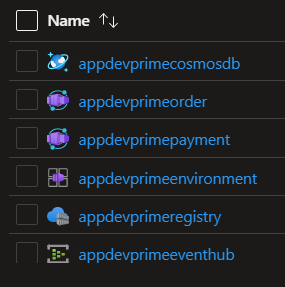
Items needed in your environment
- Install .NET SDK 8 or higher
- Visual Studio Code
- An active account in Microsoft Azure
- An active account on the Devprime platform and Devloper or Enterprise use license.
- Devprime CLI installed and active (
dp auth) - Azure CLI installed and active (
az login) - docker on-premises active
- Microsoft Powershell installed
- Microsoft Bicep installed (
az bicep install) - Install an updated version of GIT
If you need any more revision or help, I’m at your disposal!
In this article we will use two microservices built by Devprime and implemented as presented in the article Asynchronous Microservices Communication. You can run the example previously or go straight to the code provided by github.
This project uses powershell and bicep-based scripts to create the Azure Container Apps environment in Azure. You can adapt the scripts as per your needs.
Get started
a) Run a clone of the project on github
git clone https://github.com/devprime/azure-container-apps-bicep
b) Check the home folder with the Order and Payment items. Each folder of this has a microservice developed with the Devprime platform.
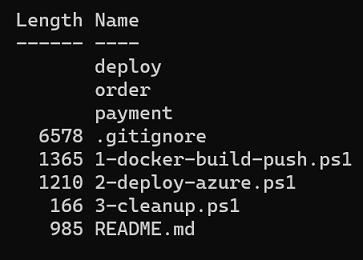
c) Go to the ‘order’ folder and add your Devprime license. After executing the command it will change
the file ‘order\src\App\appsettings.json’
dp license
d) Enter the ‘payment’ folder and add your Devprime license. After executing it will change
the file ‘payment\src\App\appsettings.json’
dp license
Local database and stream credentials
To run the microservice lociously by adding the credentials of a mongodb database and a kafka cluster in the order project and the payment project by editing the file ‘appsettings.json’ as shown in the example below. At the time of deployment we will use the credentials from the Azure environment.
Optionally locate the ‘State’ and ‘Stream’ keys and change the values with mongodb and/or kafka services credentials in the ‘order’ and ‘payment’ folders
code order\src\App\appsettings.json
code payment\src\App\appsettings.json
Running the microservice locally
Enter the order or payment folder and execute
.\run.ps1 ou ./run.sh (Linux, macOS)
Exporting microservices configurations
Go to the ‘order’ folder and run the Devprime CLI export command to create a deployment file. Repeat the same procedure in the folder and ‘payment’. We’ll copy some parameters.
dp export kubernetes
Now return to the root folder and open the files to observe the parameters that will be sent
during deployment of Azure Container Apps. View the key ’env:’ in the files below.
code order\.Devprime\kubernetes\deployment.yml
code payment\.Devprime\kubernetes\deployment.yml
[Environment variables]
When running the Order and Payment microservices on the Azure Container Apps instance, you need to configure the environment variables. This procedure is very similar to the one used in docker and Kubernetes and you can see a preview in the image below.
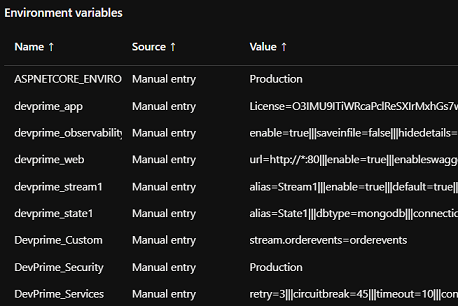
Setting the Environment Variables
a) Edit the file 1-docker-build-push.ps1, 2-deploy-azure.ps1 and 3-cleanup.ps1 by setting a new value in the $app variable. Do not use special characters.
b) Edit the deploy\main.bicep file to change the settings for the environment variables.
code deploy\main.bicep
c) Copy the contents of the key ‘Devprime_app’ into the file ‘order. Devprime\kubernetes\deployment.yml’ in Order and change the deploy\main.bicep file in the Order microservice key. Note that in main.bicep we’ll create two instances of Azure Container Apps and you must repeat the passes in Payment.
// Container Apps: Order
// Container Apps: Payment
In this example, we won’t change any other settings. If you need to set more parameters for your application, repeat the procedure for the other keys.
Performing environment creation in Azure Container Apps
We will run the scripts so that you can follow along step by step. In the end, if all goes well, you will already have the Azure Container Apps url in the logs and query the services in the Azure portal.
a) We will start with the creation of the Azure Resource Group, Azure Container Registry (ACR), docker Build and Push the microservices images to the private repository in ACR.
.\1-docker-build-push.ps1
b) Now we will use bicep to create Azure Container Apps, Azure Container App Environment, Azure CosmosDB, Log Analytics, Event Hubs.
.\2-deploy-azure.ps1
Accessing microservices in Azure Container Apps
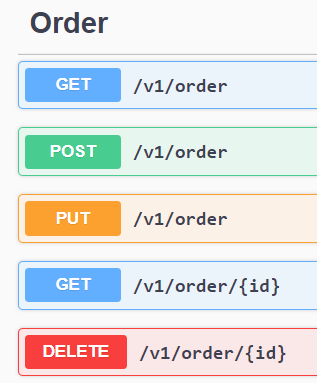
In our example, when creating the services in Container Apps, we are using the option to receive requests (ingress) through a public endpoint.
The urls below are examples of the accesses available. Get yours.
-
https://appDevprimeorder.calmbush-62be1470.canadacentral.azurecontainerapps.io
-
https://appDevprimepayment.calmbush-62be1470.canadacentral.azurecontainerapps.io
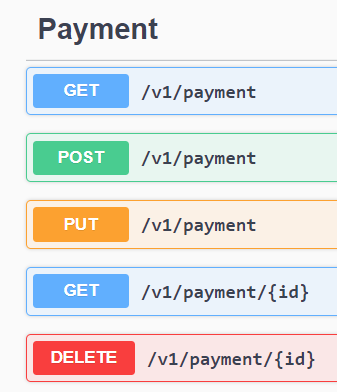
When making a post to the Order API it will process the business rule, persistence in mongodb (Azure CosmosDB) and then emit an event through Kafka (Azure EventHub).
The second microservices will govern the event and carry out its natural processing cycle according to the implemented business rule.
Deleting the entire environment created
To delete all services created in Azure, run the script below. Before confirming, make sure about the name of the Resource Group created in this demo
.\3-cleanup.ps1
Suggestion for next steps
- Automate this process using Azure DevOps, Github…
- Add a security setting in the API display
- Add an Azure API Management service
To learn more:
- Deploying microservice using Devprime in Azure Container Apps. /introduction-azure-container-apps/)
- Azure Container Apps documentation[https://docs.microsoft.com/en-us/azure/container-apps/)
- How to deploy Azure Container Apps with Bicep
- Deploy to Azure Container App from using a CI/CD Azure DevOps
- How to Build and Deliver Apps Fast and Scalable with Azure Container Apps
- Output connection strings and keys from Azure Bicep
- CosmosDB Bicep